Calibre 9.0的新功能
歡迎回來,Calibre 用戶們。 Calibre 8.0 發布至今已近一年。 和往常一樣,過去一年 Calibre 的開發工作進展順利。 主要新功能包括全新的書架視圖,讓您可以像瀏覽擺放在書架上的紙質書籍一樣瀏覽您的書籍收藏;以及在 Calibre 的某些部分添加了可選的 AI 功能。
-
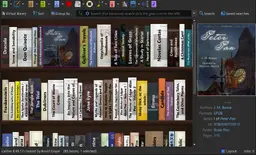
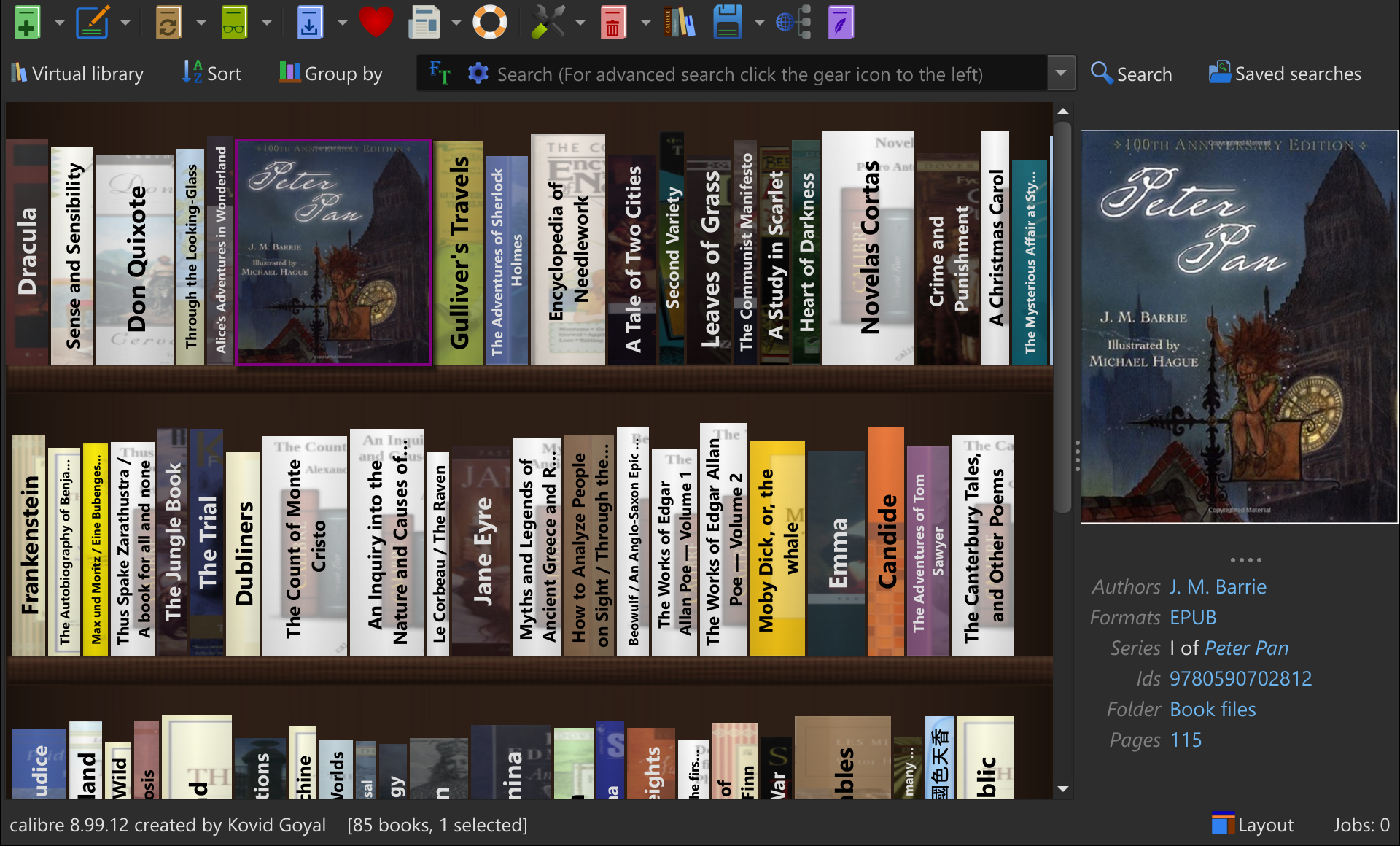
書架視圖
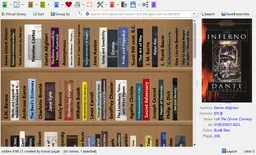
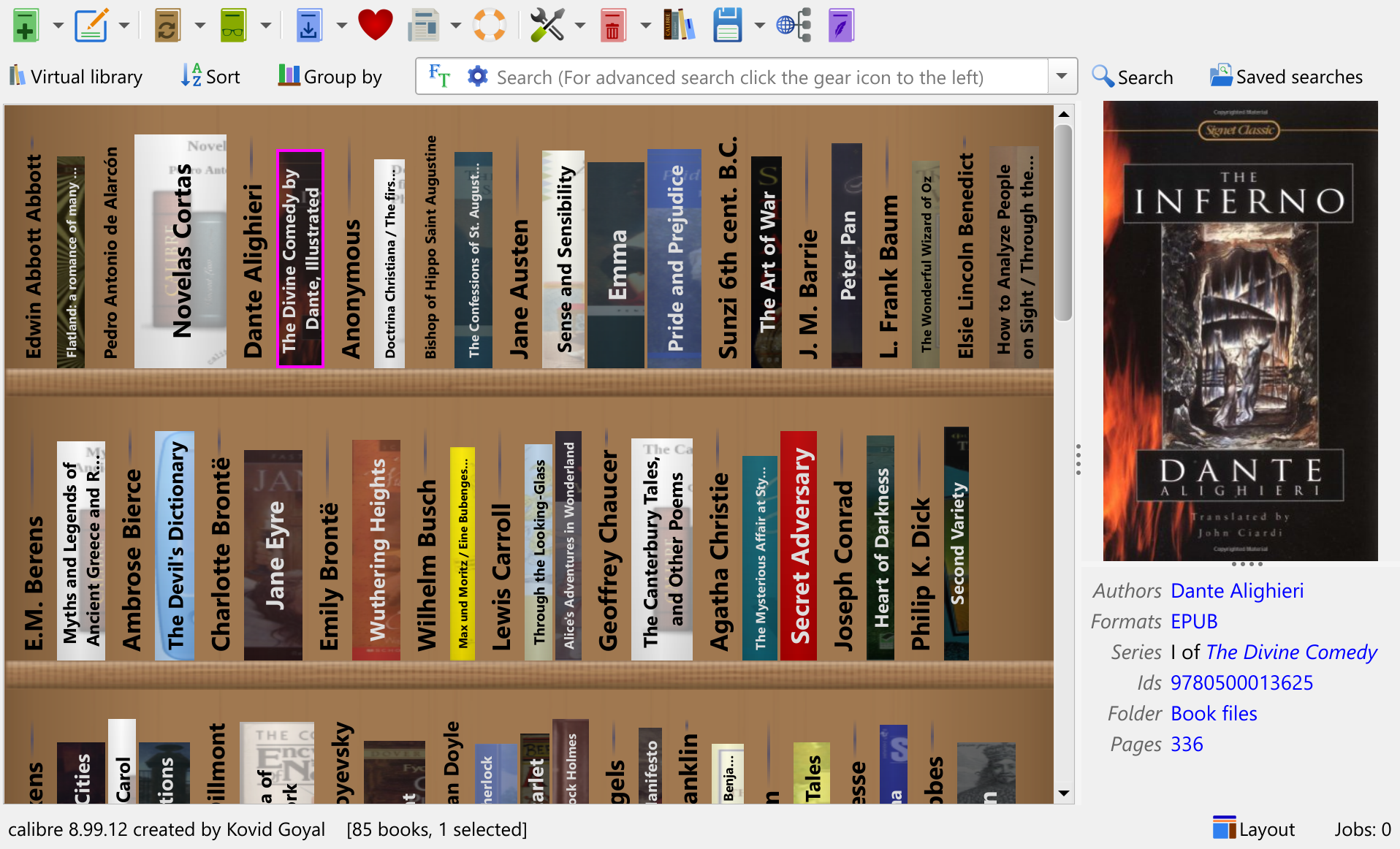
全新的書架視圖將您的 Caliber 圖書館以書架上書籍的排列形式呈現。您可以 依作者/系列等將書籍分組,以便於瀏覽。 將滑鼠懸停在書脊上即可查看完整的書籍封面。
點擊 Calibre 視窗右下角的佈局按鈕即可存取新視圖。 當「書架」視圖處於活動狀態時,您可以點擊搜尋列左側出現的分組依據按鈕來對書架上的書籍進行分組。
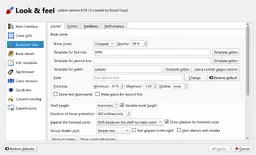
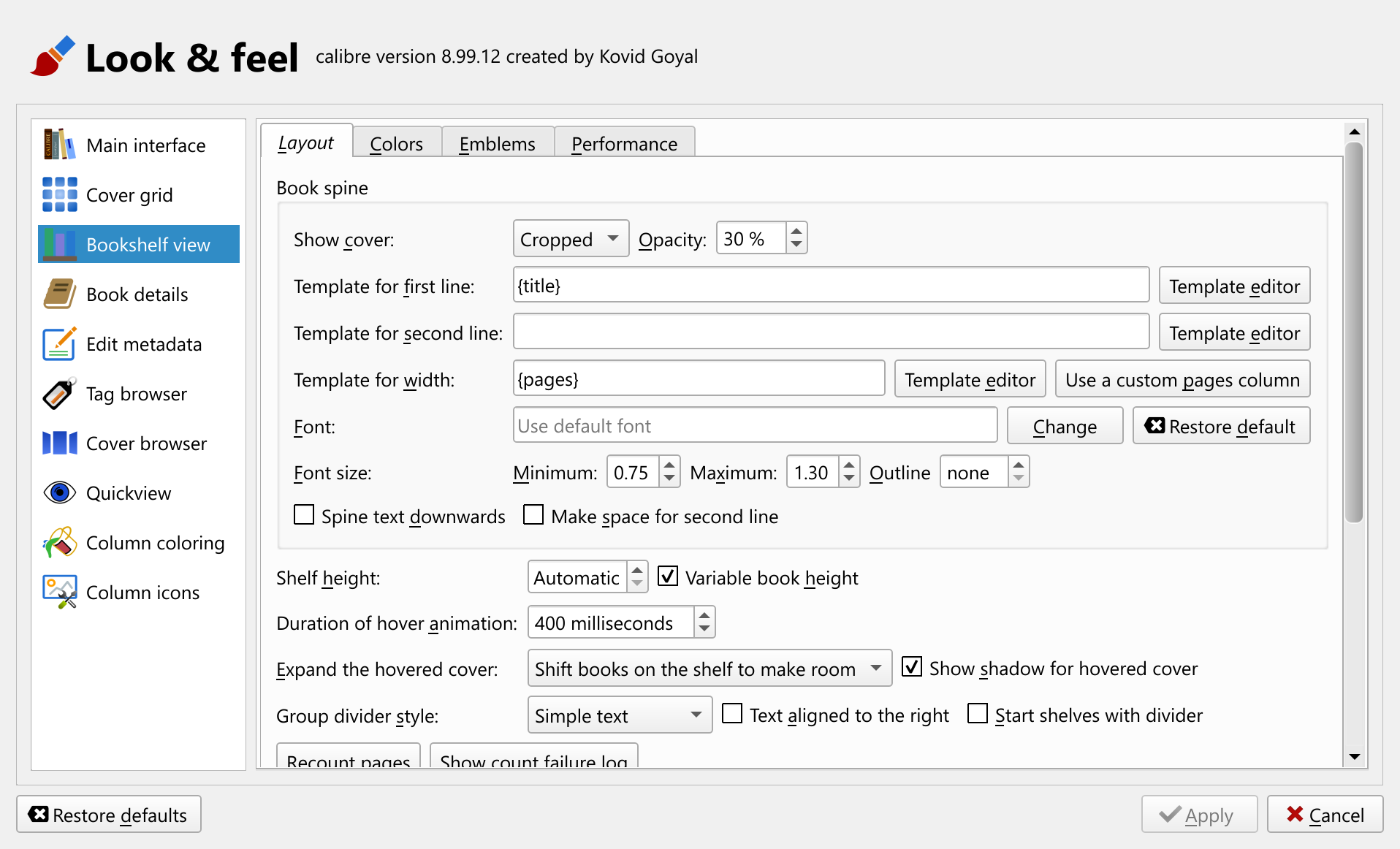
秉承精良的傳統,全新視圖高度可定制,您可以根據喜好進行配置。 從書脊字體到封面縮圖在書脊上的顯示方式,所有設定均可自訂。 預設情況下,書籍厚度基於新增的內部頁數列計算, 但如果您喜歡使用其他列,也可以。 啟用書架視圖後,新增的內建列會自動保留, 它使用基於內容的估算方法來計算書籍頁數。
-
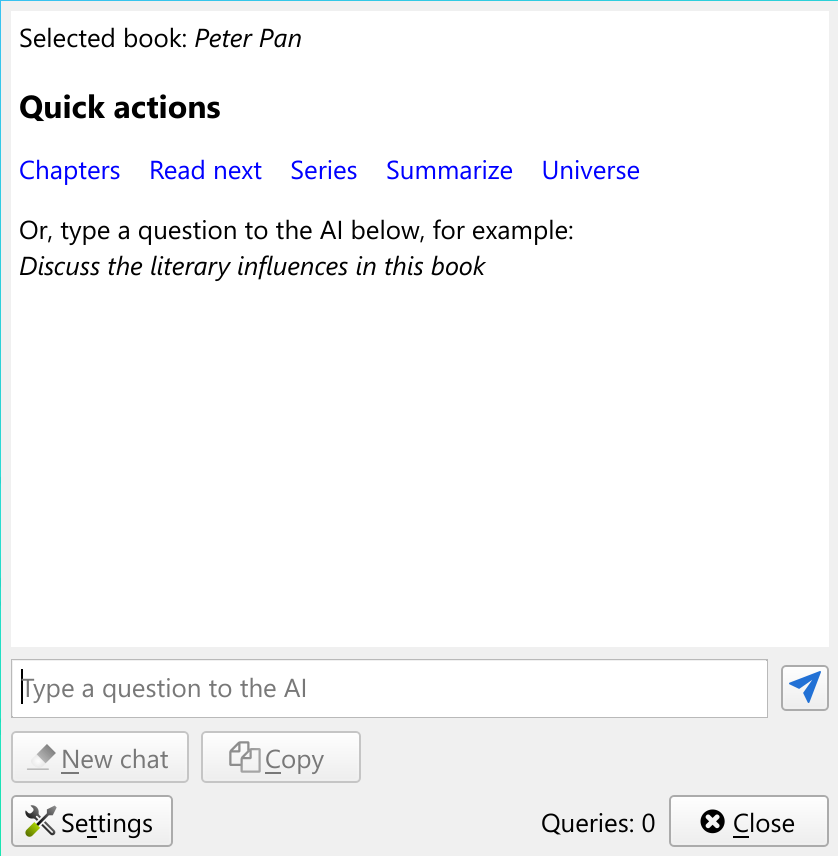
Discuss books with AI
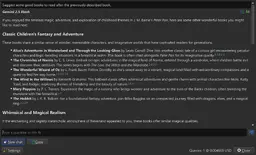
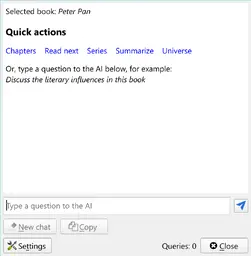
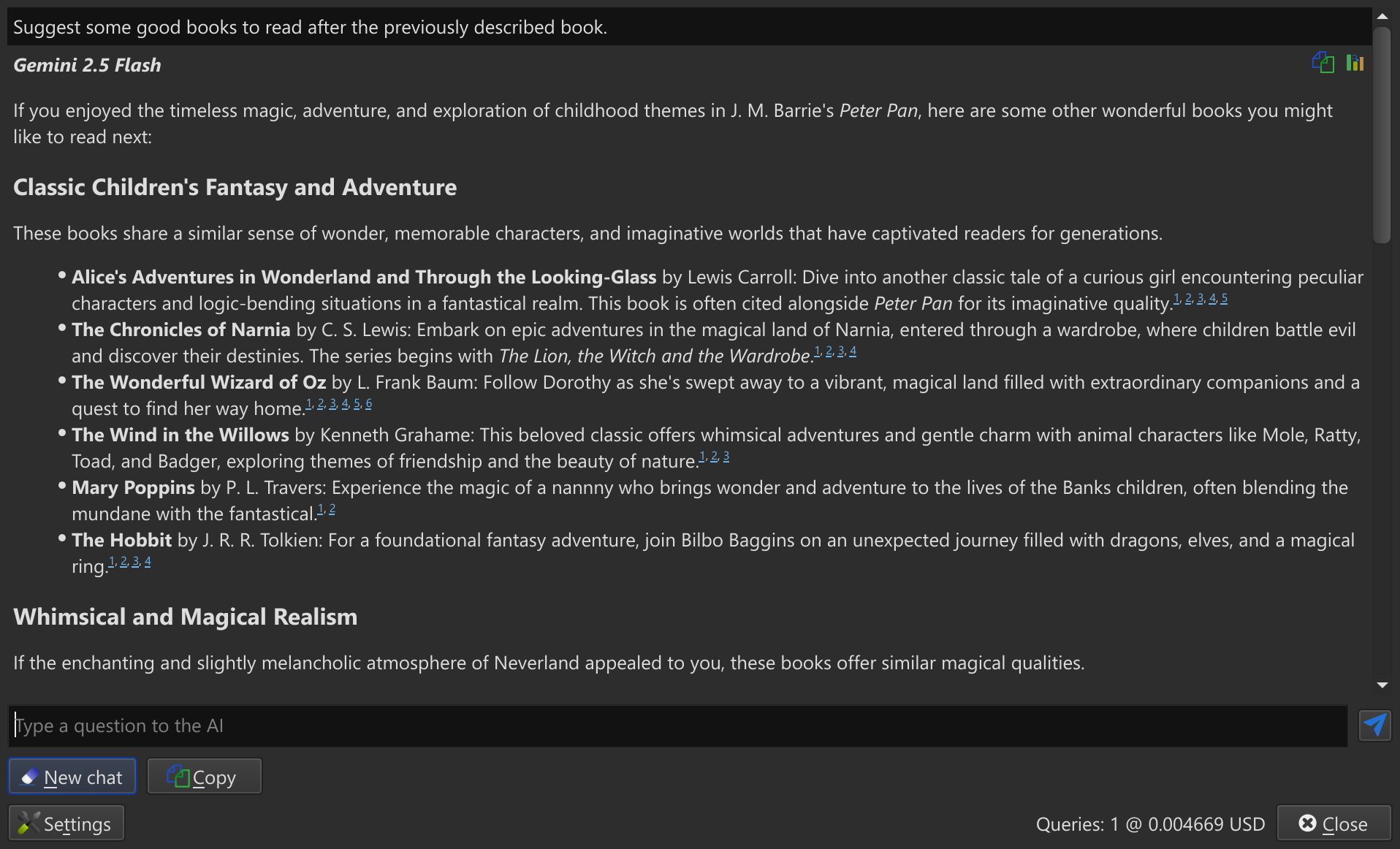
You can now discuss books with AI, asking for what to read next or asking AI questions about the book and related material. Simply right click on a book, choose, Similar books and Ask AI what to read next.
If you want to ask the AI more general questions, right click the View button and choose Discuss selected book with AI.
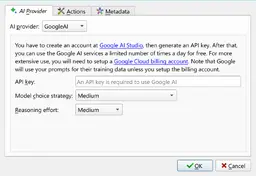
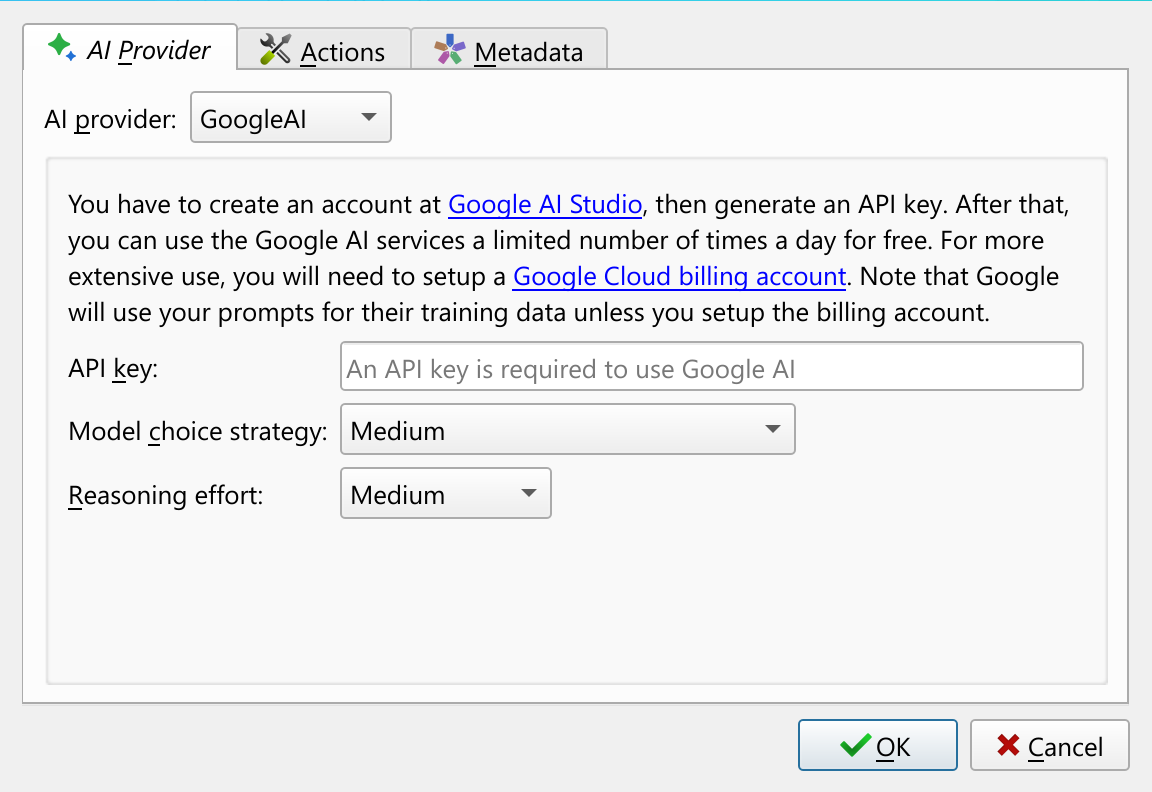
All AI features in calibre are completely opt-in. You must first configure an AI provider before any AI related code is even loaded in calibre. calibre supports both cloud based and local-only AI providers. When you first try to use an AI feature, you will be asked to configure your AI provider and model.
-
Discussing books with AI while reading them
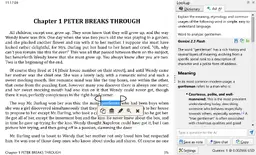
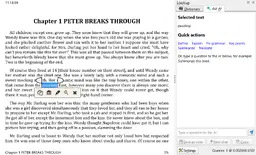
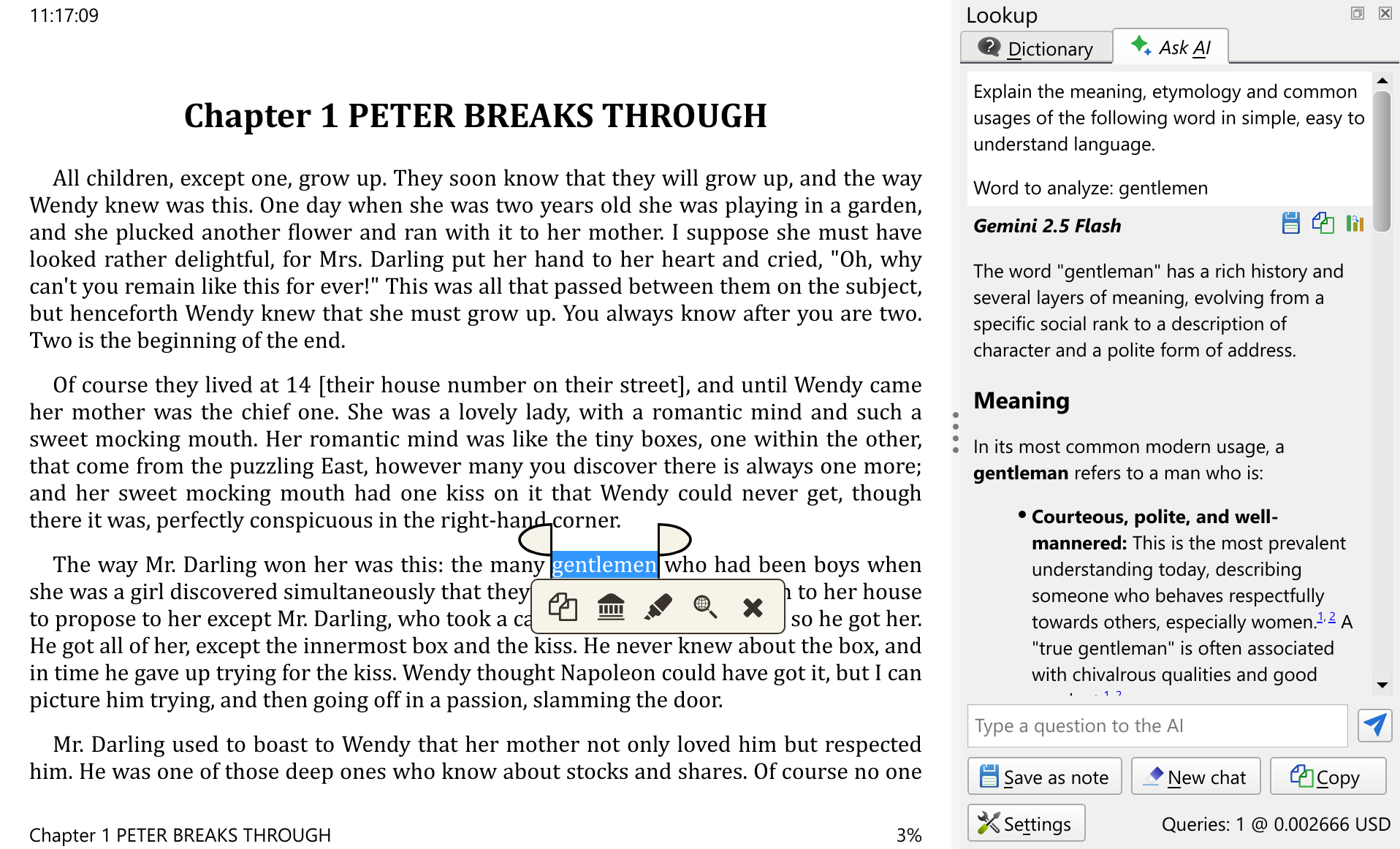
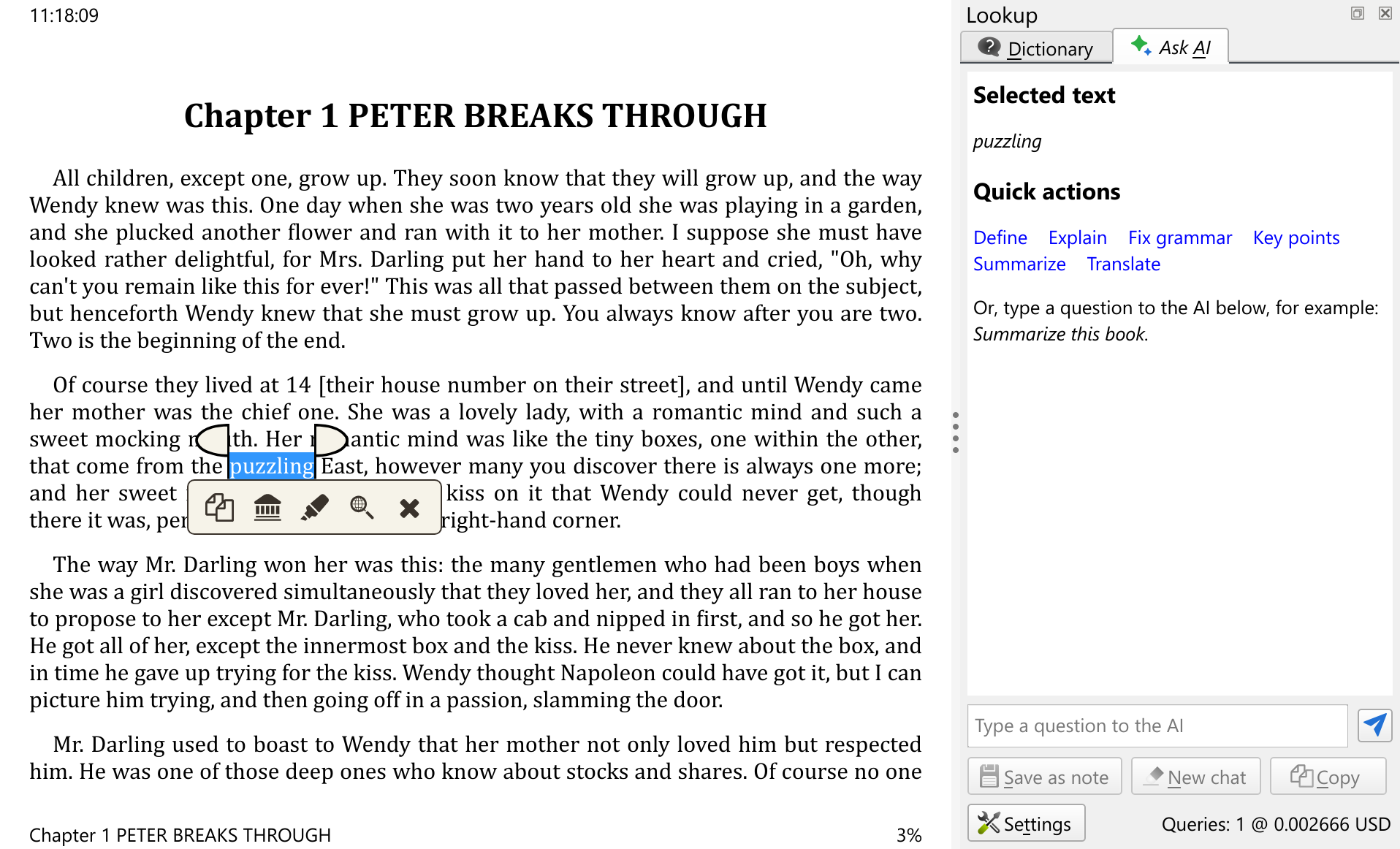
To complement the above AI feature of discussing books, the calibre E-book viewer has also gained AI integration. When you select some text in the viewer, you can optionally ask AI about that text in the context of the book you are currently reading. This is useful for explaining difficult words or concepts, asking for translations, summarising long passages, et cetera.
To use this feature in the E-book viewer, simply select some text, then click the lookup button on the pop-up toolbar and use the Ask AI tab to discuss your selected text with the AI.
在此,我们要向无私奉献了精力和热情的 calibre 社区表示衷心的感谢 — 如果没有他们,上面的许多功能就永远不会出现。
Note that some of these features were actually introduced during the lifetime of the 8.x series. This document describes new features as compared to 8.0
查看 calibre 以前的主版本中的新功能: 8.0, 7.0, 6.0, 5.0, 4.0, 3.0, 2.0, 1.0, 0.9, 0.8, 0.7.
 正在和支付金流連線中,請稍後…